Interacting with Beacons
When a new Beacon session first checks into the team server, a record will appear in the Event Log (View > Event Log) and a new session will appear in the table or graph view, depending on which one is selected.
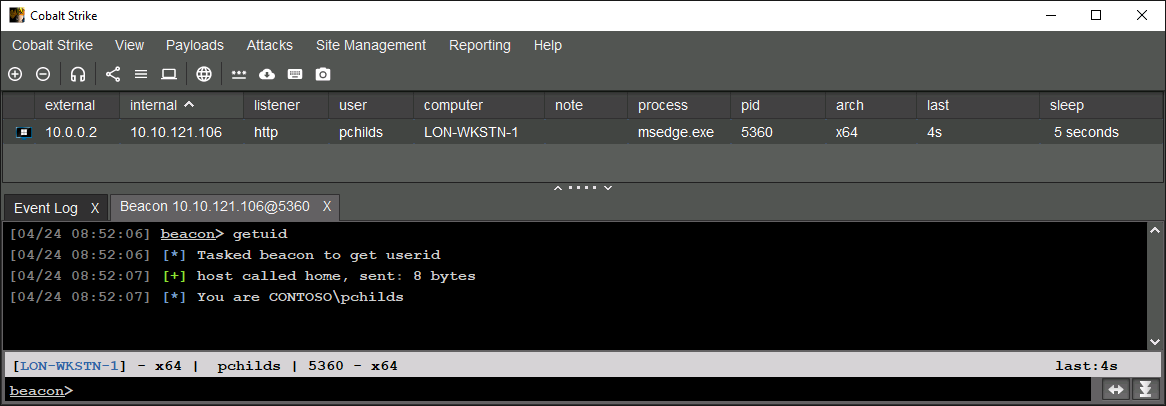
external: external IP of targetinternal: internal IP of computerlistener: name of egress listener the Beacon is communicating throughuser: username the Beacon process is runing ascomputer: hostname of the computernote: where you can add notesprocess: name of process Beacon is running aspid: process of ID the Beacon is running asarch: Beacon architecture, either x64 or x86last: is the last time the Beacon communicated with serversleep: sleep time of Beacon
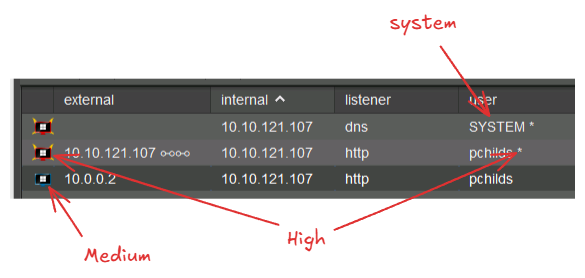
- Blue monitor icon means the beacon is running as standard user priveleges
- Red monitor icon means beacon is running as admin or SYSTEM privileges
Transmission
- HTTP/S uses GET/POST to transmit metadata
- For DNS, no metadata is provided on every check in so it initially appears as a ghost or black mointor icon. Can use the
checkincommand to interact with it and get metadata manually
Interaction
To 'interact' with a Beacon, double-click on its row or right-click and select Interact. This will open a new tab.
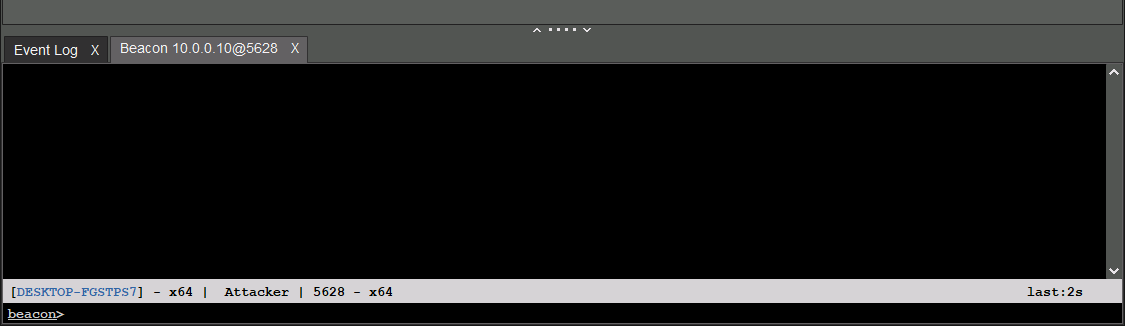
help: get list of commands with short summary of eachhelp <command>: get more help on specific command
To task the Beacon, simply type a valid command and press enter again. This will place a job in the queue.
[02/26 15:52:55] beacon> getuid
[02/26 15:52:55] [*] Tasked beacon to get userid
Multiple commands can be queued while waiting for beacon to checkin. Clear the queu with clear command
Session Graph View
The image below shows one egress and two P2P Beacons, but it's not immediately obvious which Beacon is connected to which. Are both P2P Beacons connected directly to the HTTP Beacon, or are they arranged in a different way?

The solution is to use graph view. It has less info but it make the connections visually clear
.png)
- firewall icon + dashed line: egress beacons talking directly to team server
- solid lines: P2P connections
- Colors denote protocols:
- Dashed Green: HTTP/S
- Dashed Yellow: DNS
- Solid Green: TCP
- Solid Yellow: SMB
Right-click somewhere on the black background to bring up a menu containing alternate layout options. The default layout seen here is Tree > Left. You may also right-click on a Beacon to bring up the same interaction menu as you see in the table view.